Table of Contents
Introduction
You are the IT leader of a campus network, responsible for enterprise Wi-Fi management and tasked to optimize Wi-Fi performance. During a team meeting, your members complain that colleagues from other departments often report that the Wi-Fi feels slow. They say the signal is strong, but the network still responds slowly.
After discussion, your team can only reply with facts: the APs are working, no disconnections, no packet loss on the switches, and no congestion on the links. All network functions appear normal. However, you still cannot deliver a satisfactory user experience.
This scenario explains a common question: what is endpoint experience? The situation above is an example of poor endpoint experience.
Next, here are several methods on how to optimize Wi-Fi performance with the OpenWiFi Controller, helping you, as the IT leader, avoid struggling for answers and actually resolve the issues reported by other departments.
Method 1: Identify Slow Hops with Path Trace
Using Path Trace, IT teams can quickly pinpoint delays and optimize Wi-Fi performance across all hops from client to server.
The OpenWiFi Controller visualizes the full path from client → AP → switch → gateway → service server, as shown in the diagram below.

By identifying key nodes and hop counts along the full path, and calculating the latency contribution of each segment, the system displays the entire chain in a visual layout. This helps operations teams quickly see which segment is experiencing delay, packet loss, or blockage.
The system also retains full network telemetry, allowing one-click replay of the actual path and status at any selected time. You can quickly “reconstruct the incident,” pinpoint the cause, the location, and how long the issue lasted.
So when someone complains that “Teams is lagging,” you, as IT leader, no longer need to guess, and you avoid back-and-forth between the AP team, switching team, or gateway team. As the team leader, you can identify within 10 seconds whether the issue is on the AP, the switch, the gateway, or the backend server.
This is when you say: “Check the Path Trace first. See which hop is stuck, then decide which team to call.”
Method 2: Event Timeline Analysis for Slow Connections
One-sentence summary: from joining Wi-Fi to getting an IP to accessing the internet, every step shows where it gets stuck.
When an employee says, “I’m connected, but I can’t get online… forget it, I’ll just use mobile data,” the actual process involves a sequence of events:
Access → Authentication → DHCP → Reachability → Roaming → Offline
The system presents these events on a timeline, showing exactly what happened at each point in time, as shown in the diagram below.

Through this visualization, the system calculates how long each event takes from start to finish and compares it with the normal baseline. This directly shows which step is causing the slowdown, without manually checking backend logs.
At the same time, the system can extract key fields from backend authentication logs, server logs, or other system logs and present them directly, enabling fast root cause analysis.
Method 3: Identify Poor-Performing Devices with Client Profile
One-sentence summary: not all devices behave the same — the experience varies widely across iPhone, Android, and older Xiaomi models.
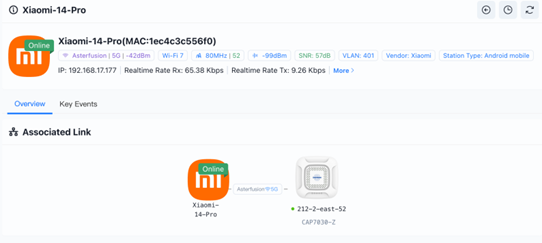
The OpenWiFi Controller builds a dedicated profile for each device type and even each individual client, based on historical behavior and performance data. The profile mainly includes:
- Device fingerprinting: Using MAC address, OUI, and behavior patterns, the system automatically identifies the device brand, model, and type (iPhone / Huawei / Xiaomi / laptop / IoT, etc.).
- Historical experience curve: The system plots this device’s experience score over the past hours, days, or weeks. From the curve, you can see which time periods are slow, which locations have weak signal, and whether the issue is occasional or persistent. This helps determine whether the device is “temporarily unstable” or “inherently problematic.”
- Network adaptability assessment: The system shows whether the device performs more stably on 2.4 GHz or 5 GHz, and which AP provides better experience.
Based on this client profile, the system automatically applies more suitable Wi-Fi optimizations for the device — for example, guiding it toward a better AP or steering it to a cleaner channel.


With automated optimization policies and the client profile, IT team can clearly determine whether a poor user experience is caused by network policies or by the device’s own performance limitations.
Method 4: Monitor Metrics to Prevent Degradation
One-sentence summary: know where things will fail, and fix it before it breaks.
The OpenWiFi Controller also optimizes Wi-Fi performance by continuously monitoring key metrics such as signal strength, packet loss, and throughput.
It supports both real-time monitoring and historical trend review, allowing you to track experience changes over the past 7 or 30 days.
At the same time, the system provides trend analysis and comparison. By comparing historical patterns, it can identify signs of potential degradation and trigger preventive actions before the user experience drops.


As the IT team, you can review these metrics daily and compare the trends. This lets you see which Quality Metrics are starting to decline before employees complain. It reduces reactive firefighting and enables preventive operations.
By continuously monitoring key metrics, IT teams can proactively optimize Wi-Fi performance before users even notice degradation.
Method 5: One-Click Wi-Fi Auto-Tuning
The OpenWiFi Controller can automatically optimize Wi-Fi performance based on client experience scores and client density. The system performs actions such as:
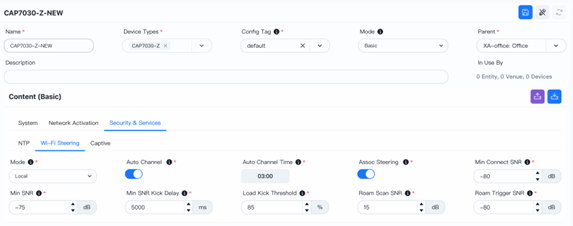
- Automatic channel and power adjustment: reduces co-channel interference and ensures balanced coverage in high-density AP areas.
- Dynamic client steering: assigns clients to APs with better signal quality to achieve smarter load balancing.
- Adaptive roaming thresholds: switches clients to nearby APs when signal quality drops below a certain level, reducing disconnections and reconnections on a single AP.
With this expert-level, experience-driven auto-tuning, the network can be continuously optimized, ensuring your IT team can effortlessly optimize Wi-Fi performance campus-wide without manual intervention. This significantly reduces the workload for the IT team, and during handover, you can rely on clear metrics and data to support your analysis.

Free Trial of OpenWiFi Controller
Through these five capabilities, the Asterfusion OpenWiFi Controller optimizes Wi-Fi performance by providing stable and measurable user experience, visualized network paths, instant identification of fault points, and continuous Wi-Fi quality improvement through expert-driven automatic tuning. This shifts operations from reactive firefighting to proactive, preventive management.
If you want to experience these features firsthand, we offer a completely free online demo environment.
👉 Try it here: Asterfusion OpenWiFi Controller
You can log in with Google, GitHub, Microsoft, or Feishu accounts in one click. The demo environment includes two spaces:

- Demo scenario (read-only): Explore phenomena and usage examples.
- Dedicated scenario (configurable): Import devices, plan topology, and perform practical operations.

Experience the Asterfusion OpenWiFi Controller yourself and see how it helps you optimize Wi-Fi performance in real campus scenarios.
Additionally, if you want to experience an online SONiC switch CLI demo, you can access it via the SONiC Switch Demo and connect to our switch devices through the controller interface. Please note that a username and password must be requested manually.
If you are interested in trying it out or wish to have further technical discussions, contact us or leave a comment in our AsterNOS Community Enterprise Network to request an account.

Contact US !
- To receive timely and relevant information from Asterfusion, sign up at AsterNOS Community Portal
- To submit a case, visit Support Portal.
- To find user manuals for a specific command or scenario, access AsterNOS Documentation
- To find a product or product family, visit Asterfusion-cloudswit.ch .
- To contact Sales, Send E-Mail to bd@cloudswit.ch


