Table of Contents
Introduction
Access points (APs) serve as the first layer of network access and are the primary touchpoint for enterprise users, directly impacting the Wi-Fi experience. User feedback provides a direct measure of Wi-Fi performance, making WiFi network optimization an important task in enterprises. This process should include dual WiFi network optimization to ensure both 2.4 GHz and 5 GHz bands operate efficiently, along with other optimization measures. This article will discuss these strategies in detail.
To clarify the optimization approach, we divide the enterprise campus network into four sections:
- Client side: end devices such as smartphones and laptops.
- Access layer: the WiFi layer responsible for the final wireless hop to the client.
- Transport layer: GPON/XGS-PON, which aggregates multiple access points and forwards traffic to the equipment room.
- Core layer: the campus core network that handles switching and high-performance forwarding of outbound traffic.
As the enterprise IT team, you can apply end-to-end management policies across these four layers, client, access, transport, and core, to perform WiFi network optimization. This helps address common issues such as how to make your WiFi signal stronger and improves the overall wireless experience.
End-to-end Management by OpenWiFi Controller
In global network management, both wireless and wired devices can be managed through the OpenWiFi Controller, including APs, switches, and routers. It provides several capabilities for WiFi Network Optimization.
1. End-to-End Path Trace for locating issues at the exact hop
The OpenWiFi Controller visualizes the full path from the client → AP → switch → gateway → application server. It identifies key nodes and hop counts, and calculates the latency contribution of each segment. This helps operations teams quickly determine which hop is experiencing delay, packet loss, or congestion.

2. Event Timeline Analysis
A user’s Wi-Fi connection involves a sequence of events: association → authentication → DHCP → reachability → roaming → disconnection. OpenWiFi Controller captures the timestamps of each event and presents them on a timeline. By comparing the duration of each phase with the expected baseline, it helps identify where abnormal delays occur.
3. Monitoring “Connection & Quality Metrics”
The controller tracks core metrics such as signal strength, packet loss, and throughput. It also provides historical trend comparisons to detect potential degradation. These insights allow IT teams to take preventive actions before the user experience is affected.
4. Automated Adjustments
OpenWiFi Controller supports automated WiFi network optimization. It evaluates the device’s historical behavior and performance data to apply more suitable Wi-Fi parameters.
The controller can adjust channels and transmit power automatically, and it uses an adaptive threshold mechanism to determine when a device should switch to a neighboring AP. This helps clients move to access points with better signal conditions without manual intervention.
👉 Try it for free : Asterfusion OpenWiFi Controller
With unified control and end-to-end visibility, campus Wi-Fi becomes transparent, predictable, and self-optimizing. OpenWiFi Controller reduces manual operations while enabling consistent WiFi network optimization.
Client-Side WiFi Network Optimization
As an end-user on the client side, you can take the following measures for Wi-Fi network optimization:
optimization:
- Move closer to the AP: Position your device nearer to the access point. This strengthens signal intensity, reduces interference from walls and human bodies, and directly improves throughput and connection stability.
- Hardware upgrade: Check your network card for proper seating and compatibility. Ensure that your device supports Wi-Fi 6/6E/7 standards.
- Reduce network load: Close background syncing, cloud storage, automatic updates, and non-essential applications during video conferencing or high-bandwidth activities to reduce bandwidth and CPU usage.
- Update drivers: Use the latest network card drivers. Newer drivers typically offer better compatibility, connection stability, and throughput performance.
- Disable power-saving mode: Power-saving mechanisms in devices reduce Wi-Fi transmit power and active time, limit maximum Wi-Fi speed, and can reduce roaming responsiveness. Disabling these modes can improve overall wireless performance.
- Release/renew IP and flush DNS cache: If Wi-Fi performance is degraded, resetting your IP address and DNS cache can help refresh the connection and resolve temporary network issues.
- Disable VPN/proxy for testing: VPNs can limit bandwidth or route traffic through longer paths, causing perceived slow Wi-Fi. Testing without VPN or proxy can help identify if the Wi-Fi performance issue is local or network-related.
- Restart device or Wi-Fi: Considered a “last resort,” restarting effectively clears device caches, resets network drivers, and releases stale sessions. This is particularly effective for mobile devices and Windows laptops to restore connection stability and throughput.
For more advanced users, additional testing can be performed:
- Adjust MTU: Set the appropriate Maximum Transmission Unit (MTU) for the network to prevent fragmentation and potential performance loss.
- Signal and noise measurement: Use Wi-Fi analysis tools to measure SSI/SNR and noise levels, helping identify interference, overlapping channels, or weak coverage areas.
- Packet capture analysis: Use tools such as
tcpdumpor Wireshark for deep troubleshooting of DHCP issues, authentication delays, slow roaming, TCP retransmissions, or high latency.
Access Layer WiFi Network Optimization
The access layer is the first segment of campus Wi-Fi performance and directly affects the end-user network experience. For enterprise campus environments, optimization can be approached from the following aspects:
1. AP Selection
- When upgrading an enterprise campus network, it is essential to choose Wi-Fi 6, Wi-Fi 6E, or Wi-Fi 7 access points to support high-density and high-concurrency scenarios.
- For different areas, select AP models and deployment methods according to business requirements:
- Meeting rooms, office areas, open workspaces: deploy for high density.
- Laboratories, production areas: ensure high concurrency and high reliability.


2. AP Deployment Strategy
- Plan by capacity, not coverage: Ensure each AP can support the actual number of users and devices, rather than deploying solely to achieve signal coverage.
- Avoid non-use areas: Do not place APs in corridors, utility rooms, or other areas not actively used.
- Prefer ceiling deployment within rooms: This ensures even signal distribution while taking into account potential obstructions from desks, equipment, and other objects.
3. Client and Frequency Management
- Guide clients to 5 GHz or 6 GHz bands: This reduces congestion and interference on the 2.4 GHz band.
- Avoid co-channel and adjacent-channel interference: Also consider interference from Bluetooth, IoT devices, and other potential sources.
4. Interference and Environmental Factors
- Keep APs away from strong interference sources: Microwave ovens, air conditioners, and similar devices can cause packet loss, retransmissions, and reduced throughput at the client side.
- Consider material penetration characteristics: Walls, shielding meshes, and other construction materials can affect signal propagation.
- Plan AP spacing appropriately: Ensure efficient use of radio resources. Too close leads to interference, too far creates coverage gaps.
5. AP Brand and Model Selection
- Choose high-performance APs: Wi-Fi 7, GPON, or XGS-PON APs can balance enterprise management capabilities with performance requirements.
- Integrate with OpenWiFi Controller for deployment: This enables unified management, channel and power optimization, and load balancing.


6. AP Channel Selection
Proper channel selection and bandwidth configuration are critical, as many performance issues stem from incorrect settings. The following guidance addresses two common questions:
Is it better to connect to 5 GHz or 2.4 GHz?
In enterprise campus networks with high-density environments, 5 GHz is preferred for its speed and capacity. Future deployments should also consider 6 GHz (Wi-Fi 6E/Wi-Fi 7). The advantage of 2.4 GHz is its stronger wall penetration, so it can be limited to specific use cases or serve as a backup channel.
Is 20 MHz better than 40 MHz?
While 40 MHz is generally considered faster, in high-density enterprise environments 20 MHz is the preferred choice for stability and capacity. It has lower interference risk, stable throughput, and more available non-overlapping channels, making it suitable for most office applications. In low-density environments or isolated rooms, 40 MHz can be used to achieve peak throughput for individual clients.
Transport Layer Optimization
In enterprise campus networks, the transport layer is primarily responsible for aggregating AP traffic from the access layer to the core network. WiFi network optimization can be approached through the following measures:
1. Use GPON or XGS-PON OLT Sticks for AP backhaul
AP backhaul refers to the process of transporting traffic from APs back to core switches or routers.
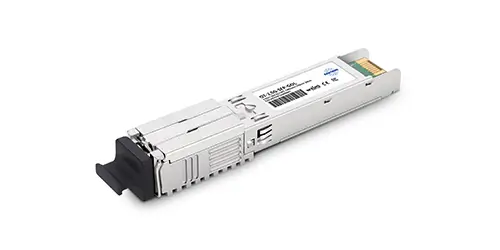
Using GPON or XGS-PON OLT Sticks to connect APs directly to switches simplifies cabling and significantly improves Wi-Fi performance. With symmetrical 10 G XGS-PON OLT Sticks, APs in high-density office areas, meeting rooms, and laboratories receive sufficient backhaul capacity, avoiding wireless congestion. Direct AP connection via OLT Sticks also reduces switch hops, lowering latency and jitter. This approach is particularly suitable for retrofitting older campus buildings and reduces the cost of copper cabling in utility rooms.
2. Allocate bandwidth by area
Backhaul bandwidth can be assigned according to floors or specific zones. For example, critical office areas or meeting rooms may receive higher backhaul bandwidth, while low-usage or leisure areas can be allocated less.
3. QoS policy management
Prioritize critical services such as video conferencing, voice calls, or real-time collaboration applications, while less critical traffic receives lower priority.
4. Adopt a hierarchical aggregation structure
Aggregate OLT Sticks at the floor or zone level to a access/leaf switch, then forward to the core network. This reduces multi-level hops and improves efficiency.
5. Control fiber attenuation and link latency
Use low-latency, high-reliability OLT Stick modules, and regularly inspect fiber link quality to prevent signal attenuation from affecting Wi-Fi performance.
6. Deploy redundancy on critical links
Redundant design on key links can prevent single points of failure from impacting Wi-Fi service across an entire floor or building.
Through these measures, the transport layer not only provides stable and high-speed backhaul for Wi-Fi but also ensures reliability in high-density, multi-device office environments, supporting overall wireless experience optimization.
Core Layer WiFi Optimization
In an enterprise campus network architecture, the core layer is responsible for providing campus-wide uplinks and high-performance L3 forwarding, making it a critical component for ensuring Wi-Fi experience. Beyond standard functions such as VLANs, segmentation, QoS, and ACLs, the core layer can contribute to WiFi network optimization in the following ways:
1. High-performance core switching and routing devices
Core switches and routers should offer high forwarding rates, low latency, and large buffering capacity to prevent packet loss or latency spikes in high-density environments. In enterprise campuses aggregating a large number of APs, the performance of core devices directly affects wireless throughput and connection stability.
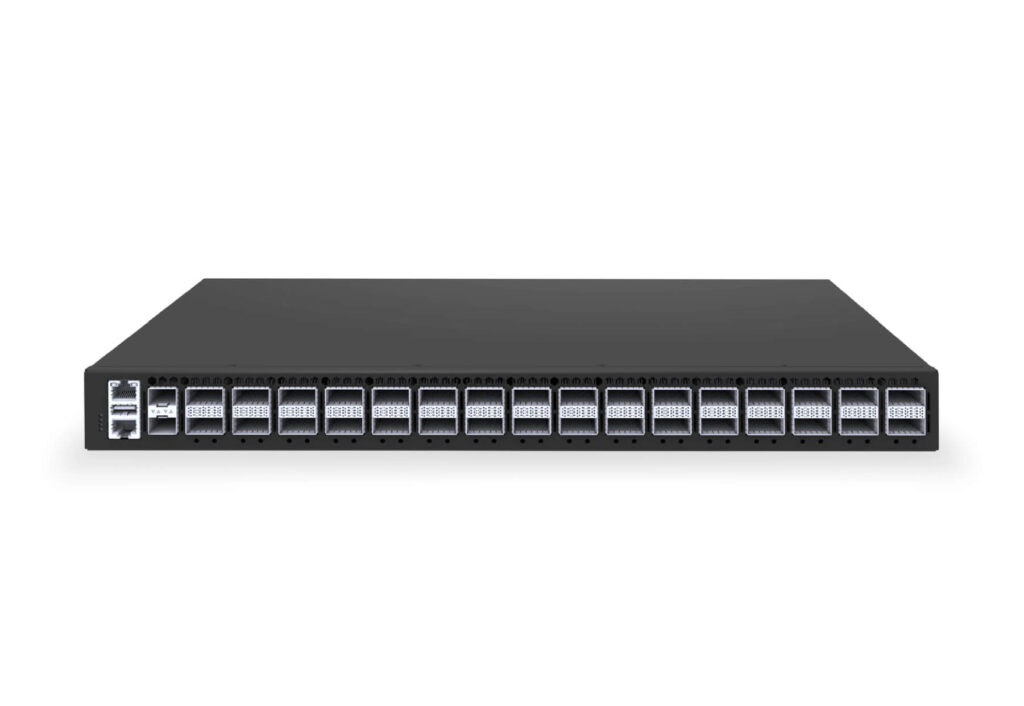
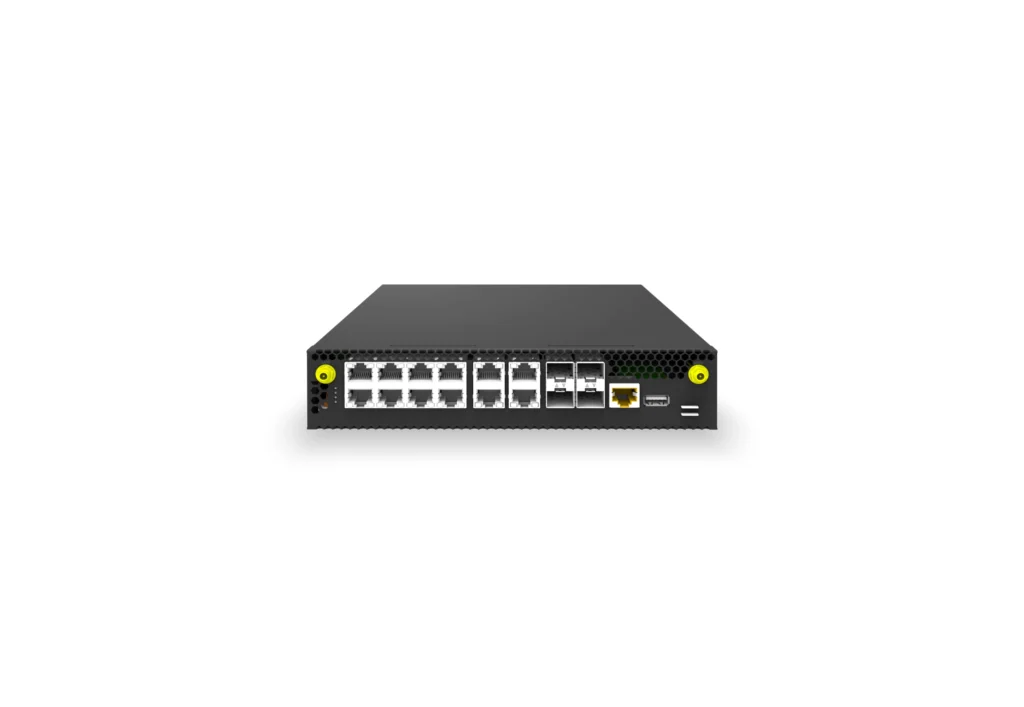
👉 If you want to experience an online SONiC switch CLI demo, you can access it via the SONiC Switch Demo and connect to our switch devices through the controller interface.
Please note that a username and password must be requested manually by leaving comments in our AsterNOS Community Enterprise Network
2. Network Observability
Use traffic monitoring tools such as NetFlow/sFlow and SNMP collection to analyze core network traffic in real time. Combined with data from the access and transport layers, this allows rapid identification of Wi-Fi performance issues and supports proactive optimization and alerting.
3. Broadcast and Multicast Optimization
Campus environments typically have higher broadcast and multicast requirements. Implement IGMP/MLD Snooping or PIM to control multicast traffic, preventing broadcast storms or multicast flooding from congesting AP air interfaces and improving wireless spectrum utilization.
4. Security and Segmentation
At the core layer, ACLs, VLAN segmentation, and firewall policies can isolate different departments or device types. This protects network security while preventing abnormal traffic from affecting Wi-Fi performance.
5. Intelligent QoS and Policy-based Routing
For critical applications such as voice and video conferencing, the core layer can deploy intelligent QoS policies to prioritize important traffic. When combined with OpenWiFi Controller, end-to-end policy enforcement can be achieved, enhancing Wi-Fi user experience across the campus.
Conclusion
WiFi Network Optimization requires coordination across client, access, transport, and core layers. Signal tuning and hardware upgrades at the client side, AP deployment and frequency management, high-performance GPON/XGS-PON backhaul, and reliable, intelligent core strategies all impact the wireless experience.
With OpenWiFi Controller, campuses can achieve end-to-end monitoring, predictive optimization, and automated adjustments, quickly identifying issues and reducing operational workload. This full-path optimization ensures stable, high-speed, and predictable Wi-Fi, even in high-density office environments.
In short, Wi-Fi optimization is a system-level task. Global management combined with four-layer coordination enables efficient and reliable campus wireless networks.

Contact US !
- To receive timely and relevant information from Asterfusion, sign up at AsterNOS Community Portal
- To submit a case, visit Support Portal.
- To find user manuals for a specific command or scenario, access AsterNOS Documentation
- To find a product or product family, visit Asterfusion-cloudswit.ch .
- To contact Sales, Send E-Mail to bd@cloudswit.ch


